CRM & conversation workflow
Facebook Messenger CRM for conversations that convert
Genius CRM supports a more organized workflow for managing conversations, contacts, and follow-up.
Watch the walkthrough
See Genius CRM in action
Watch this current walkthrough to see the product interface, main setup process, and recommended workflow before getting started.
- Install the Chrome extension where applicable.
- Review key settings before beginning a workflow.
- Use a relevant, thoughtful, and responsible process.
- Contact technical support if you need setup help.
This video is presented from the Best FB Tools training library. Interface elements may vary slightly as the product evolves.
Screenshots
Product screenshots
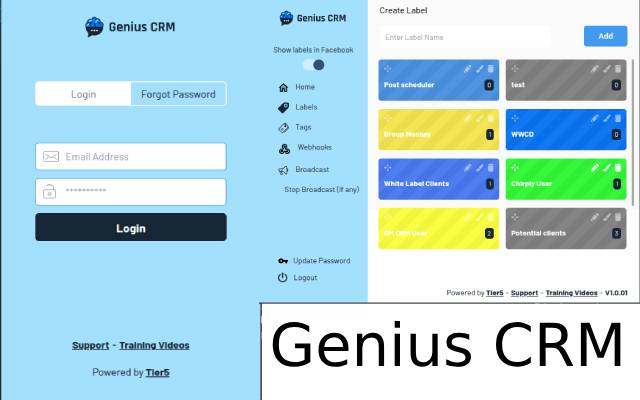
Real product screenshots from the Chrome Web Store listing.
How it works
Build a more consistent process
Genius CRM supports a more organized workflow for managing conversations, contacts, and follow-up.
Use the walkthrough above as your first step. Configure the product for your legitimate business workflow, review settings carefully, and keep your process focused on relevant customer interactions.
Recommended setup
Four steps to get started
Subscribe: Complete secure checkout for the product.
Install: Add and pin the extension in Google Chrome, where applicable.
Configure: Follow the current training video and set appropriate options.
Review: Confirm your workflow and contact support if you need help.
License & requirements
What your subscription covers
- One Genius CRM license for a single Chrome browser profile, billed monthly through secure Stripe checkout.
- Activate your license with the license key delivered after purchase.
- Requires Google Chrome on a desktop computer — Chromebooks, tablets, and phones are not supported.
- Requires a stable internet connection and a Facebook account in good standing.
Setup guide
Get Genius CRM running in five steps
Install: add the extension from the Chrome Web Store using the download link on this page.
Pin it: pin the extension to your Chrome toolbar so its icon is always visible.
Open the tool: click the pinned icon to open Genius CRM.
Activate: enter your license key when prompted.
Learn the ropes: run the onboarding tour and watch the training walkthrough before changing any settings.
Troubleshooting
Quick fixes
- Extension icon missing: open Chrome's extensions menu (the puzzle-piece icon) and pin Genius CRM to the toolbar.
- Tool not loading: refresh the page, then check that Chrome is updated to the latest version.
- License not recognized: re-enter your license key carefully and confirm you are using the email address from your purchase.
- Something changed on Facebook: the tools follow Facebook's interface, which Meta updates from time to time. If a feature stops working after a Facebook change, report it to support@tier5.us.
Is it a fit?
Who Genius CRM is for
Genius CRM is for solo business owners who already receive Facebook inquiries and are losing track of conversations, contacts, and follow-up.
It organizes your workflow; it does not close sales for you. It is a system for managing conversations, not a replacement for your judgment in them.
Genius CRM is an automation aid, not a set-and-forget bot: it respects Facebook's rate limits, and anything it sends, posts, or queues should be reviewed by you. No business, account, or performance outcomes are guaranteed — no tool can promise "ban-safe" operation on a platform it does not control.
FAQs
Common questions
How do I get billed?
Subscriptions are billed through Stripe. For billing questions — charges, invoices, or cancellation — email support@bestfbtools.com.
Where do I get technical help?
For installation, setup, or anything not working as expected, email the software team at support@tier5.us.
Where does the CRM live?
Inside Facebook Messenger — your conversations, contacts, and follow-up are organized there, so you work where your customers already message you.
Is my conversation data shared anywhere?
The CRM organizes the conversations in your own Messenger account. Keep your own records secure and follow applicable privacy obligations.
Next step
Ready to get started?
Subscribe securely, download the extension if applicable, and watch the training before use.
Bundle & save
Great alone. Better together.
Every Best FB Tools extension earns its keep on its own — but bundling them together just makes sense. Join our email list and unlock subscriber-only pricing that saves you serious money.
Get subscriber-only pricingWeekly newsletter · We never sell your information · Unsubscribe anytime